Upcoming webinar on 'Inforiver Charts : The fastest way to deliver stories in Power BI', Aug 29th , Monday, 10.30 AM CST. Register Now
Upcoming webinar on 'Inforiver Charts : The fastest way to deliver stories in Power BI', Aug 29th , Monday, 10.30 AM CST. Register Now
At Inforiver, we’re always looking for ways to make working with data easier and more impactful. With our latest 4.6 release, we’ve focused on creating smoother workflows, smarter solutions, and a more intuitive experience for planning, forecasting, and writebacks in Power BI.
In this release, we have included several UI/UX, performance, commenting, and scheduler workflow enhancements, along with a couple of feature additions.
Here are the highlights:
1.1 Text filter support in Infobridge
2.1 Tag-based bulk scheduling from external applications
2.2 Scheduling empty reports with only column headers
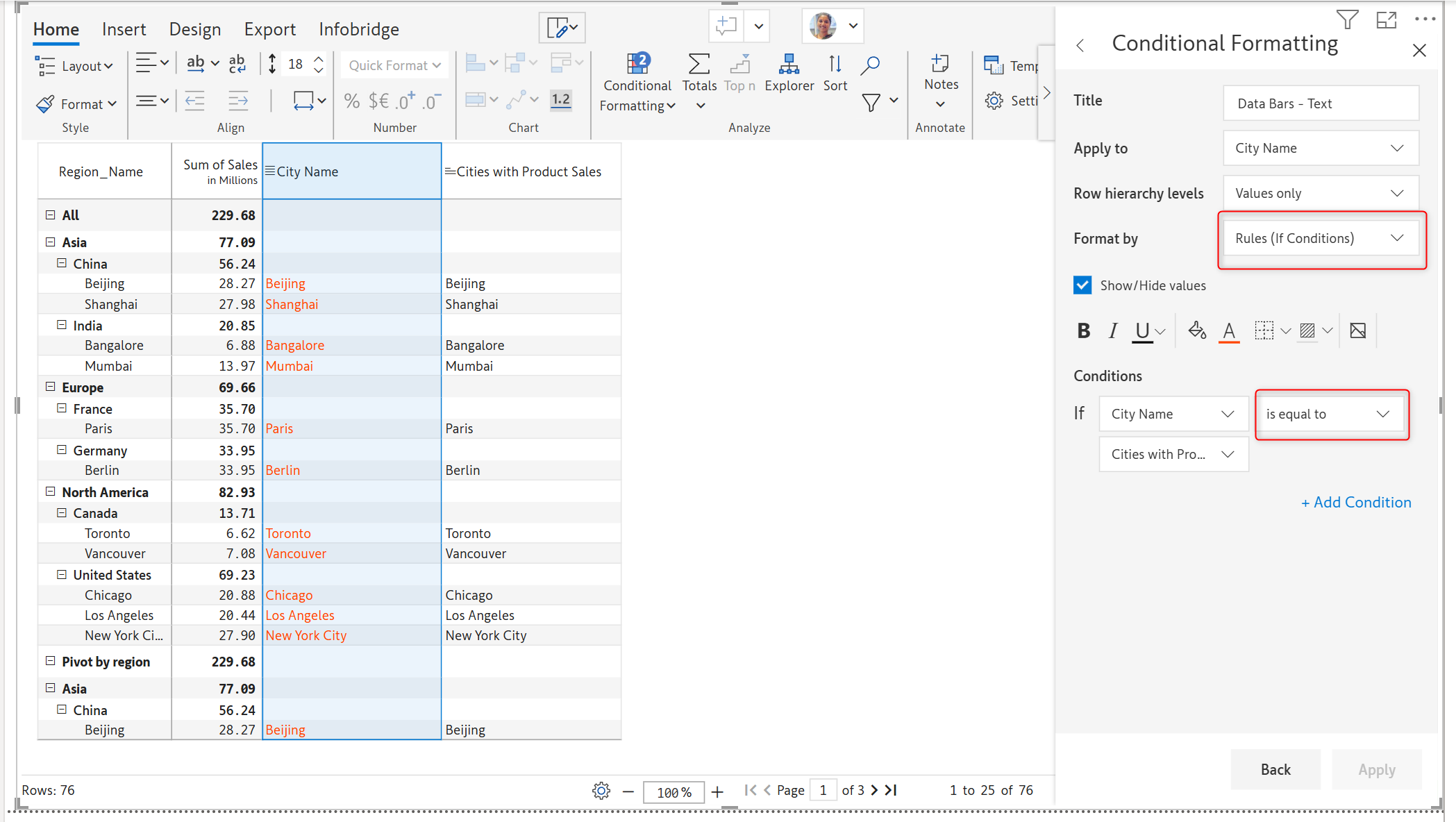
3. Conditional Formatting: Text comparison support
4. Template Rows – Reference sibling-level child rows
5.2 Default Label display for variables
6. Refresh token expiration time in minutes
7. Snowflake Key-Pair Authentication
9. Copy values from one Filter Context to another
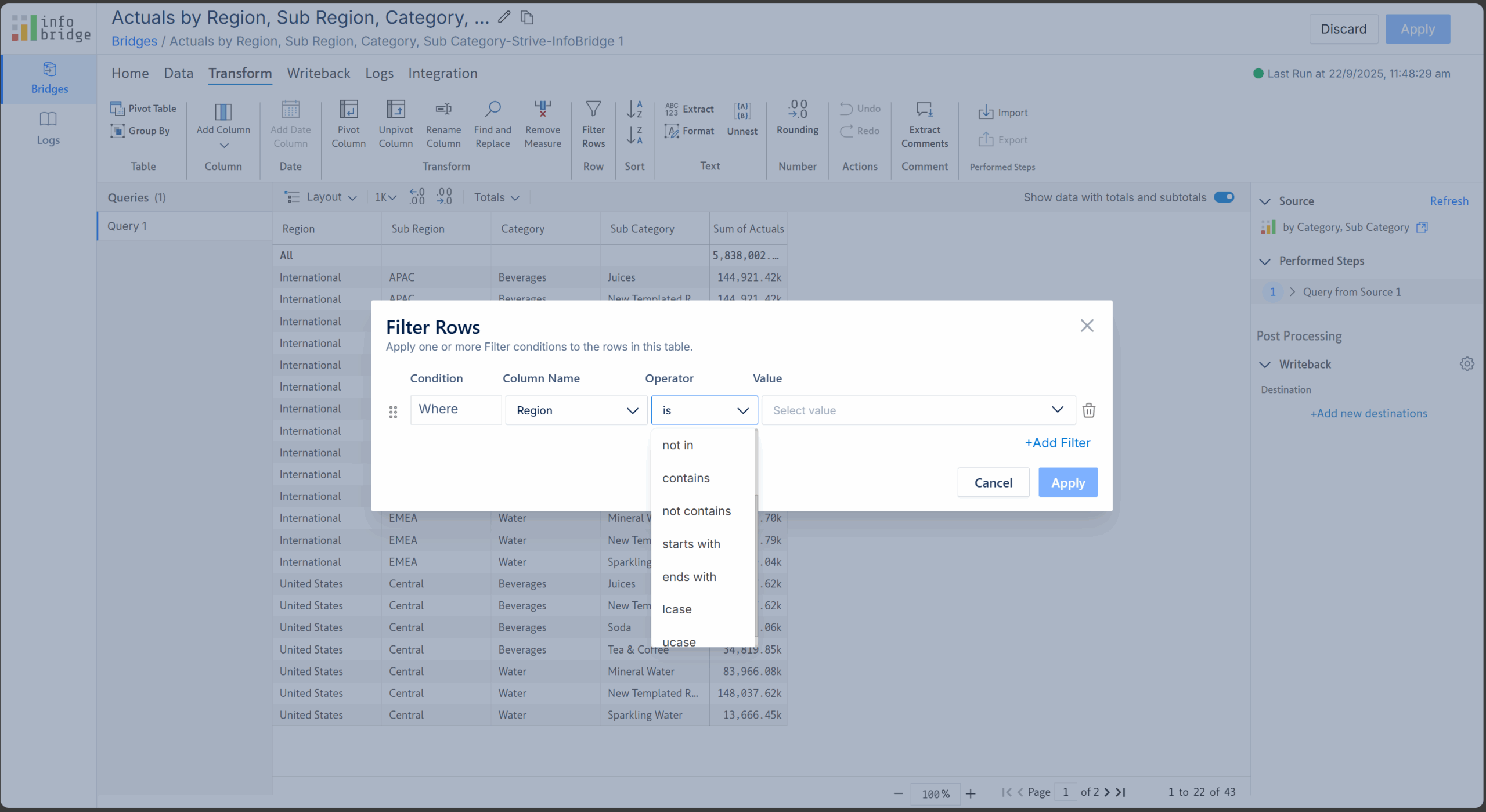
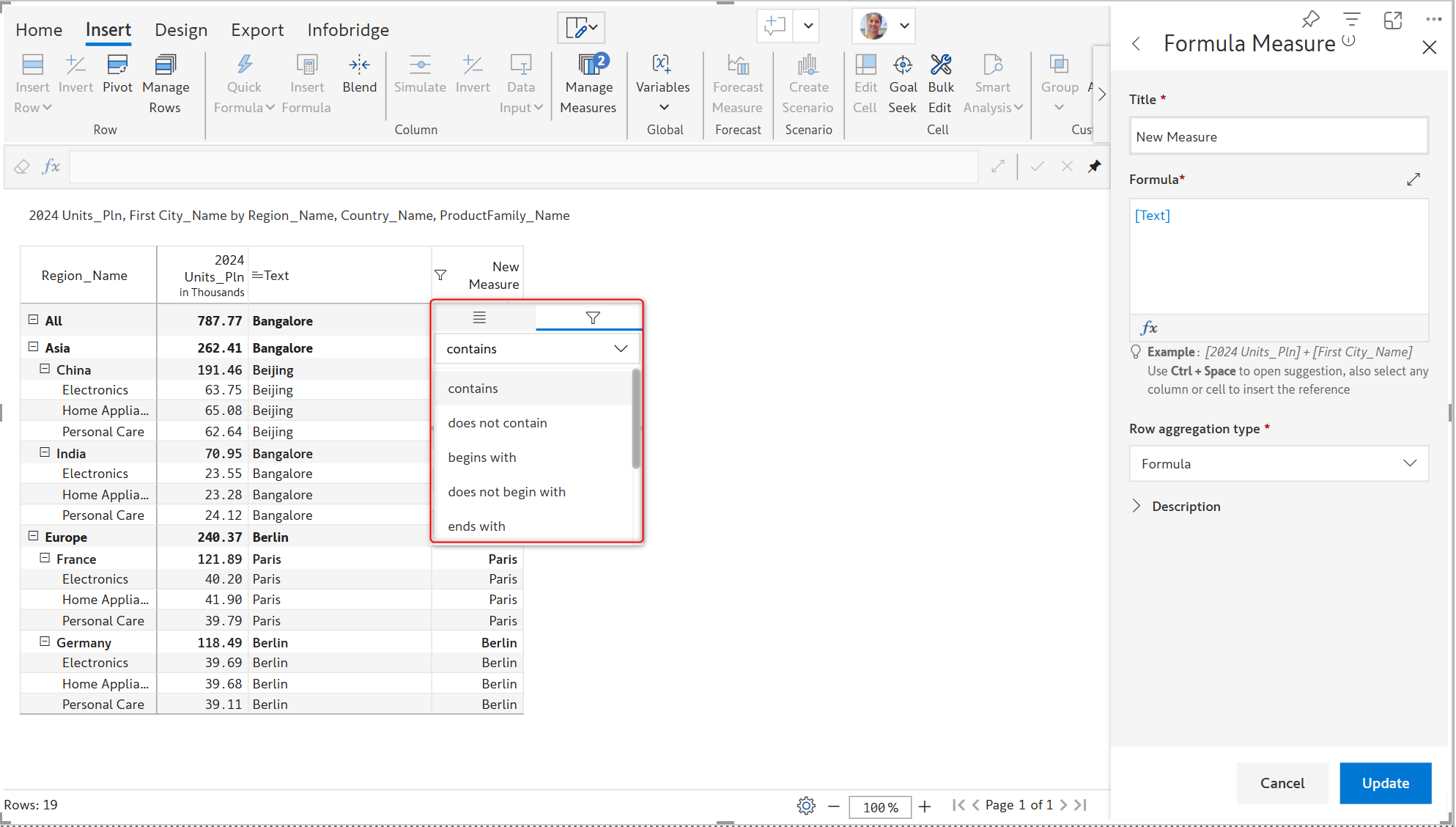
In Infobridge, you now have more options to filter your rows under the Transform tab. New text-based filter options are added under the Operator dropdown.
You can now bulk-schedule subscriptions using Tags, allowing for more efficient scheduling via API.
Adding a tag to a subscription:
Triggering subscriptions from other applications:

You can now trigger bulk subscriptions externally by API using their tag, subscription URL, and API token for authorization.

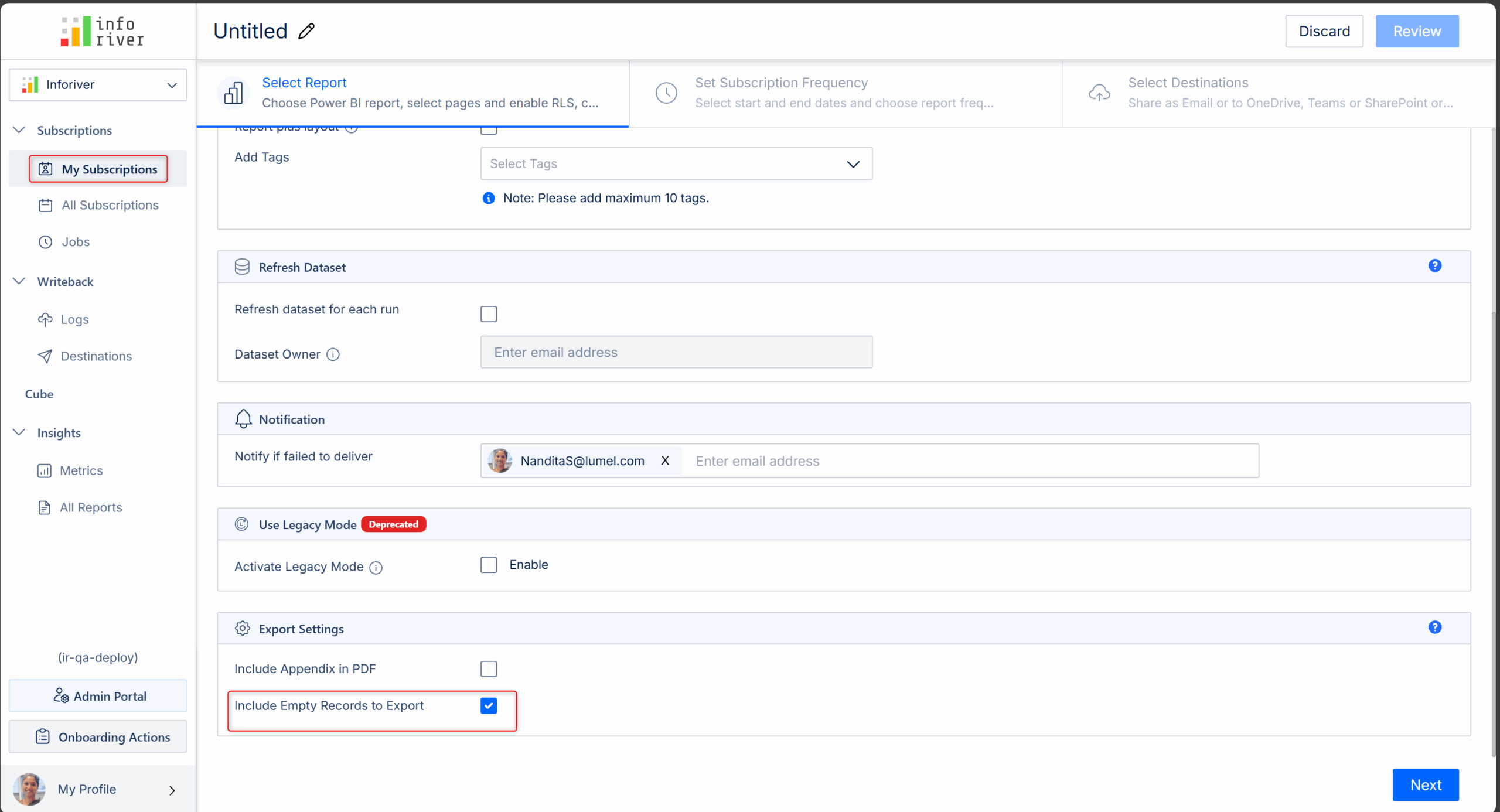
You can now schedule and export a report without any values. Inforiver Write back matrix now lets you schedule, export, and download a report with empty records. This is done by checking the 'Include Empty Records to Export' check box under 'My subscriptions' in the Admin console, which is unchecked by default.
New and improved direct comparison of texts in Data input measures is now possible using Conditional Formatting.
You can now reference a sibling's child in Templated Rows. A dynamic reference feature has been included, which enables you to reference the siblings' child row values while inserting calculated template rows. Through this dynamic referencing, the value gets auto-populated depending on the parent row.
In the image below, we refer to the value of 'Juices' under the 'Beverages’ category, for the inserted Template rows. This value is reflected in the inserted template rows across all the sibling categories within the same sub-region. In this case, Beverages and Water, in the sub-region 'APAC'.
When we check the values of the inserted Templated rows within the sub-region 'EMEA', we see that the values are dynamically referring to the 'Juices' under 'Beverages' within 'EMEA'.

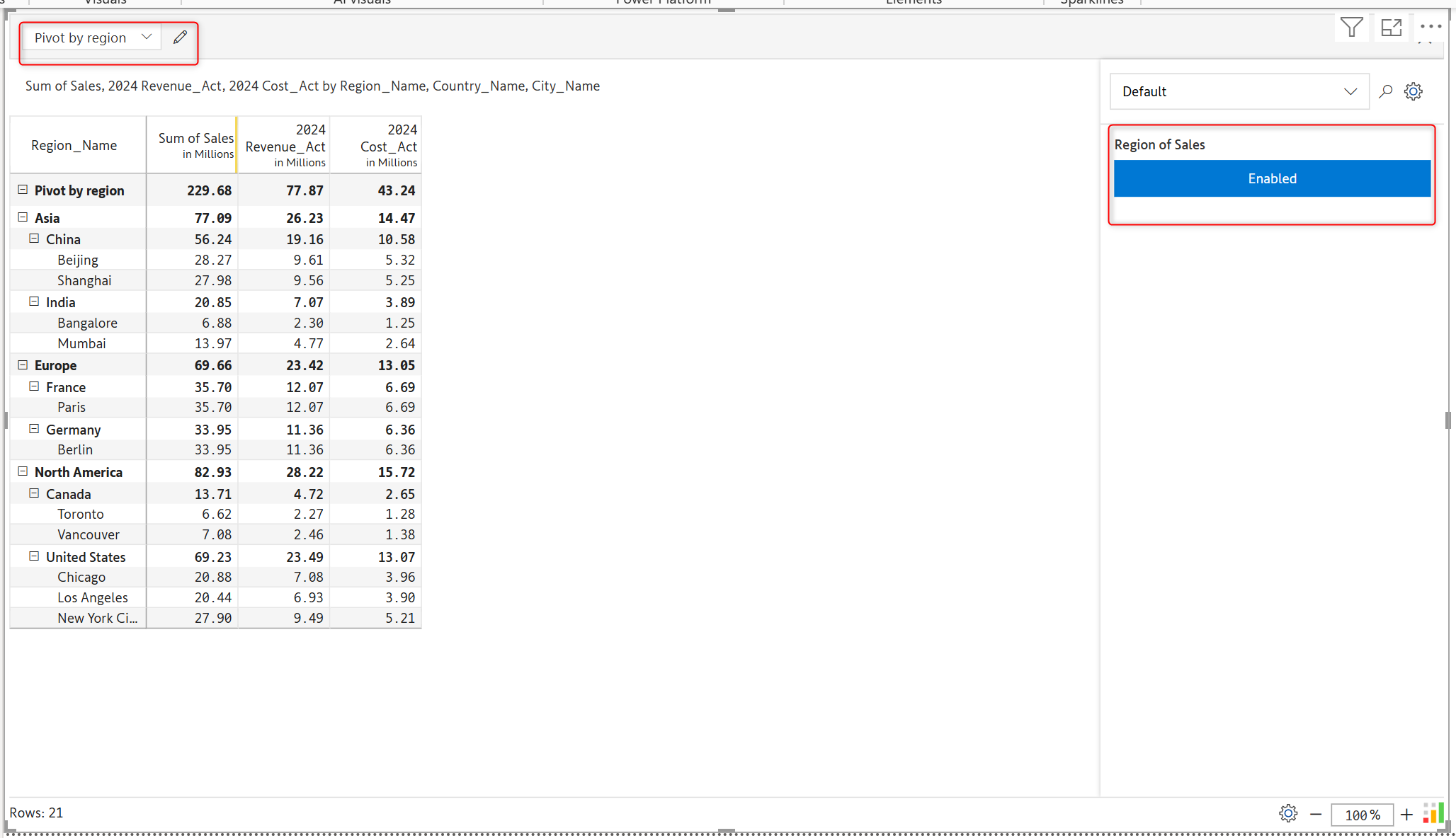
You can now manage your pivots using variables. Pivot and Variables are linked by using the toggle button while defining the variables. You can enable or disable these variable toggle buttons to pivot your data accordingly.
Variable names are now automatically displayed by default in the Writeback matrix visual when a variable is defined. The Show Label in Variables panel is auto-checked when a variable is defined. You can uncheck this option while defining a variable to hide the label name.

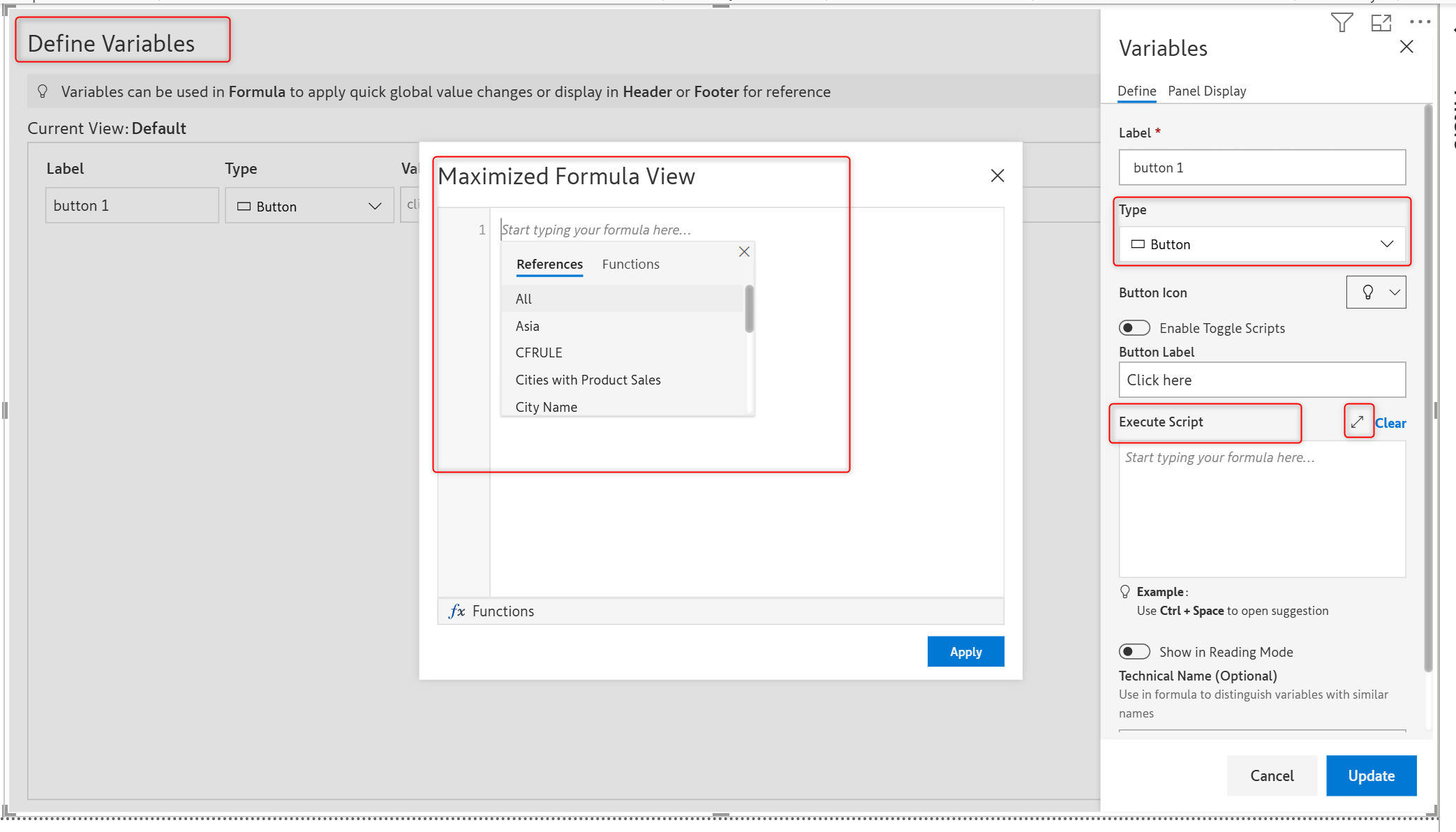
You can now maximize the formula editor when defining the button variable by clicking the expand icon near Execute Script.
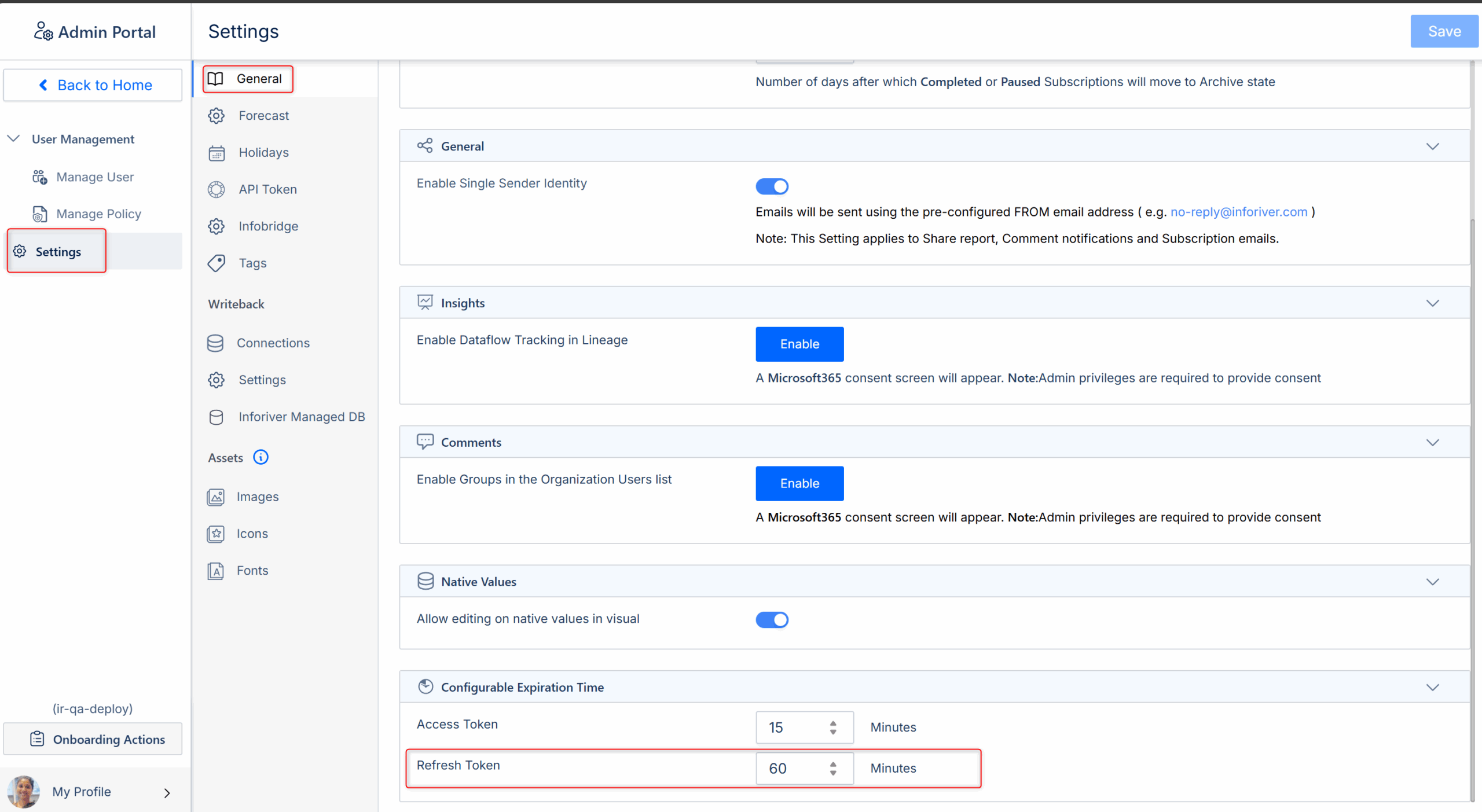
You now have more control over when your refresh tokens expire. You can now customize the refresh token's expiration time to minutes instead of days. The minimum expiration time for the refresh token is now 60 minutes, down from one day.
For this, open the Admin Portal > Navigate to Settings. Under the General tab, go to Configurable Expiration Time and set the Refresh Token in minutes.
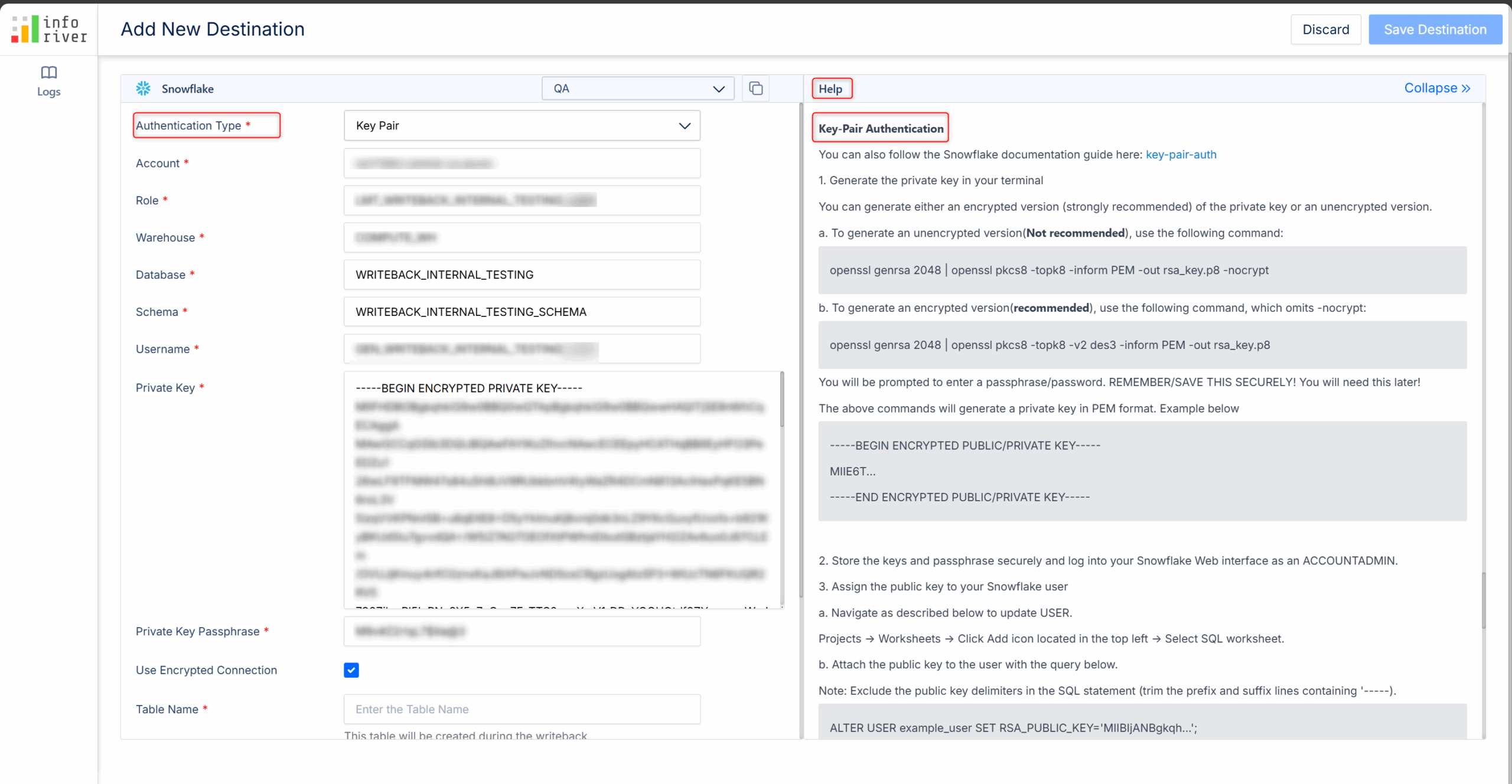
Authentication for Snowflake writeback destination is now simpler and more secure with Key Pair authentication.
In addition to the OAuth authentication in Snowflake, we now provide Key Pair Authentication. To do this, click Writeback > Add New Destination > Snowflake.
Select the Authentication type as Key Pair. Follow the Key Pair Authentication help guide in the right panel to set up the destination, and then click Save Destination.
A new and smart filter feature has been added, which detects the text data type within the Measure Column and displays the filter options accordingly.
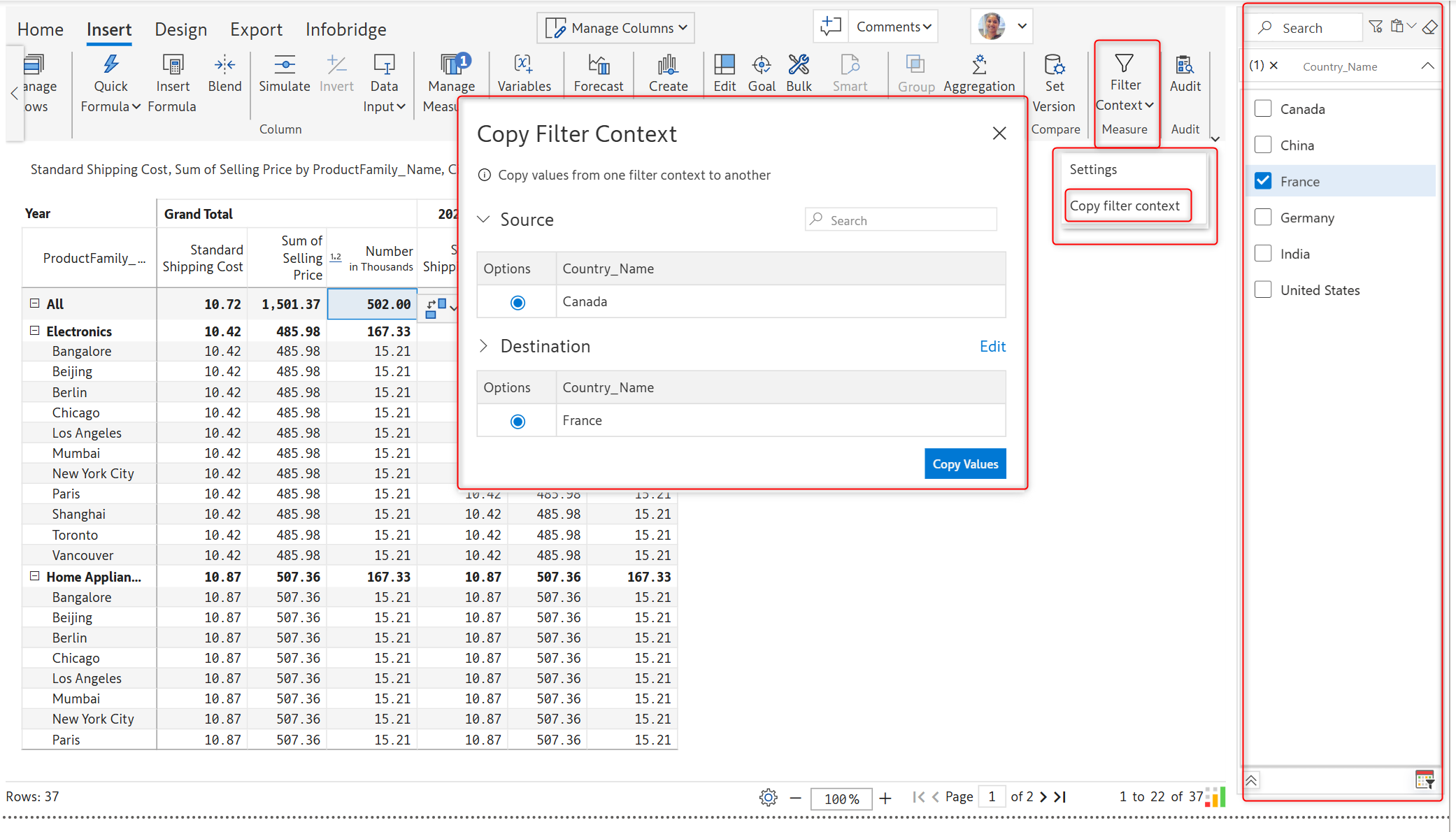
You can now copy values from one filter context to another easily for your data input measures with the new Copy Context Filter option added under the 'Filter Context' icon in the Measure section of the Insert tab.
In the 'Copy Filter Context' pop-up, select the source and the destination and copy values. Here, we have used Super-filter to filter the regions on the right-side pane.
In the image below, the values from Canada are copied to France.
Please refer to our release notes for a comprehensive list of requirements, features, and bug fixes.
Learn more about Inforiver
To learn more about the latest from Inforiver and why we are garnering recognition from industry experts, check out our newest brochure.
Inforiver and all our planning and analytics products continue to be updated to provide a diverse range of users with optimal performance. With continual improvements and innovations planned, we welcome your feedback.
If you’re ready to level up your planning, reporting, and analytics, try our products for free today.

Inforiver helps enterprises consolidate planning, reporting & analytics on a single platform (Power BI). The no-code, self-service award-winning platform has been recognized as the industry’s best and is adopted by many Fortune 100 firms.
Inforiver is a product of Lumel, the #1 Power BI AppSource Partner. The firm serves over 3,000 customers worldwide through its portfolio of products offered under the brands Inforiver, EDITable, ValQ, and xViz.